In Chordata, searches can be as general as “all Products that mention the word ‘tree'” or as specific as “all Works by [COMPOSER], published by [PUBLISHER], for [INSTRUMENT], that were created between [DATE RANGE]” and beyond. Users can find any item they’re looking for by refining their search in our powerful search system located in the Search page on the left-hand sidebar. Any refined search made using this system is what we call a query. Queries can be saved to the user’s account or made public for other Chordata users to access.
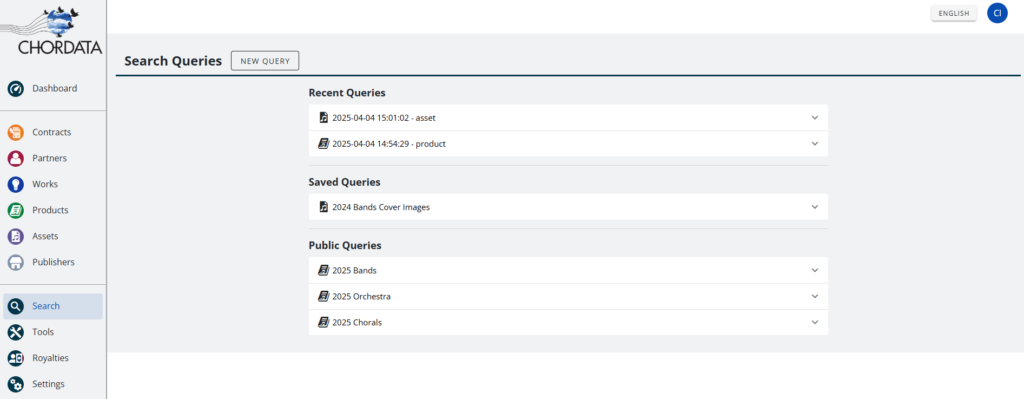
When opening the Search page, users will be presented with access to queries they’ve made recently, queries they’ve saved to their account, and queries they’ve made public. New queries can be made by clicking “New Query” in the top left.
Making a Query
The search system is made up of drop-down menus where you can select the specifics of what you’re looking for. Beginning with the “Search for” drop-down, the user can select the Entity type they want results for. After selecting the type, users will be presented with tabs for different parameters to refine their search: Rules, Groups, and Connections.

Rules
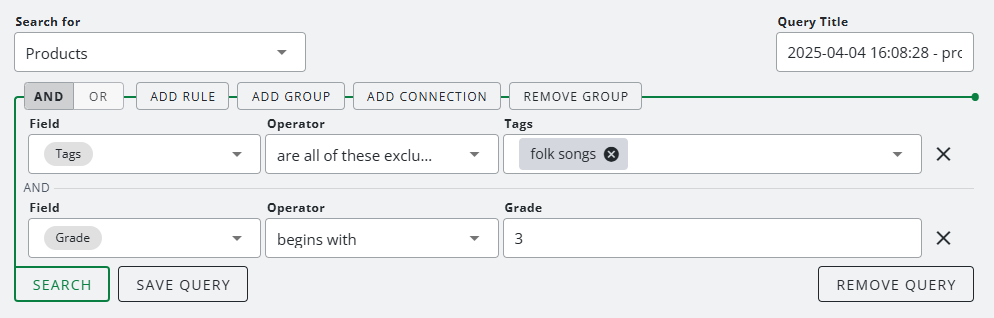
Rules allows you to identify the field of information you’re looking for (Field), how you want that information to be shown (Operator), and lastly the information itself. For example, if you wanted to find folk songs for any grade level of 3+ to perform, your search would look like this:
Groups
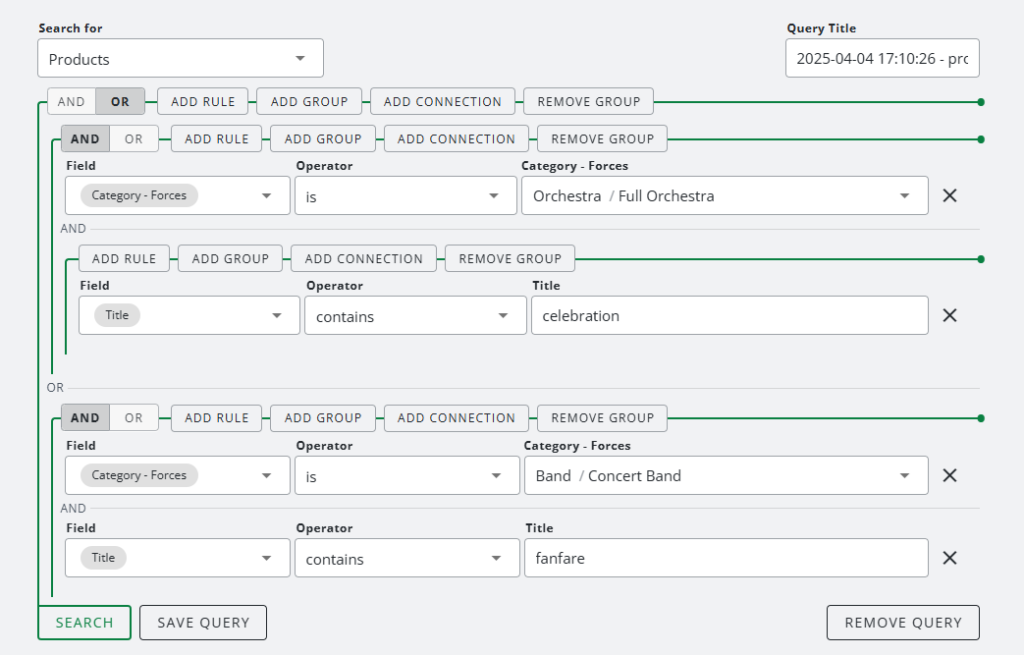
Let’s start a new query using Groups. Searching in Groups allows you to group together the fields you’re searching for based on varying information. After first selecting the Entity type you wish to search for, click “Add Group”, refine your search within that Group, and back at the top click “Add Group” again to refine your search for a second Group. For example, if you wanted to find Products for String Orchestra that contain “celebration” in the title, but you simultaneously wanted to find Products for Concert Band but contain “fanfare” in the title, for those two Groups of information your search would look like this:
Connections
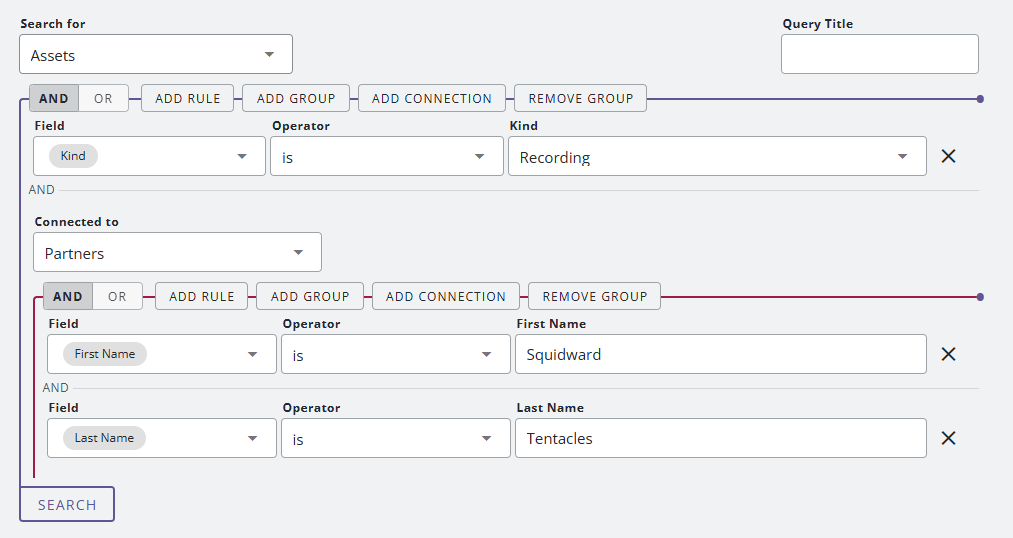
Adding a Connection to your search is an easy way to find a specific Entity based on its relationship to another Entity. For example, if you wanted to pull all digital recordings from the work of composer Squidward Tentacles, you would begin by searching for Assets, selecting the kind of Asset as Recording, clicking “Add Connection” and selecting Partners, and then inputting the First Name and Last Name of the Partner.
Downloading Results
Users may download their search results in a CSV file by clicking “Download Results” in the header. A dialogue will appear where users can select the fields of information they wish to include in the CSV file.